Skip to content
QUEST · LV.07

Burn-in test (OLED)

Look for faint shapes that stay on screen — status bar icons, the keyboard or navigation buttons.

Runs in your browser · Nothing uploadedFree · No install

Burn-in test (OLED)

Turn the brightness up, press Start and look for faint leftover shapes on each colour.

Full-screen burn-in check

Grey screens show burn-in best. Tap through 7 colours and look where icons, the keyboard and buttons usually sit.

Colours change only when you tap — nothing flashes on its own.

Did every colour look even, with no leftover image?

Result

Waiting

Waiting for you to start the test.

How to use

  1. 1Set the brightness to maximum and turn off dark mode.
  2. 2Press Start and tap through the greys and colours.
  3. 3Turn on the area guides, look closely, then answer.

Troubleshooting guide

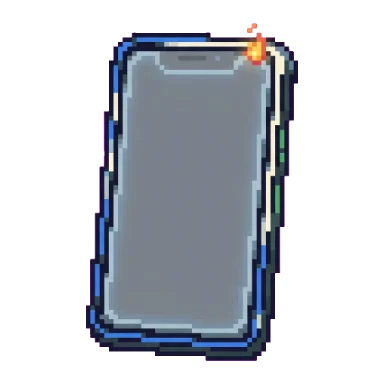
The FreeComTools mascot holding a smartphone with a grey screen and pointing at a faint shadow near the top

What this test checks

OLED screens, used by most current iPhones and many Android phones, can wear unevenly when the same picture stays on for a long time. The result is burn-in: a faint, permanent shadow of the status bar, the keyboard, navigation buttons or an app’s toolbar.

Uniform grey screens make these shadows easiest to see, and the red, green and blue screens show whether one colour has worn more than the others. On a healthy screen every step looks smooth and even.

If you see a ghost image

  1. Turn the screen off for a few minutes or show different content, then repeat the test. A shadow that fades is temporary image retention, not burn-in.
  2. Look again with the area guides on — real burn-in sits exactly where the status bar, keyboard or buttons appear.
  3. Lower the brightness for everyday use, use dark mode and a short screen timeout, and switch to gesture navigation so fixed buttons disappear.
  4. Avoid leaving static pictures, maps or games on screen at full brightness for hours.
  5. If the shadow is clearly visible on a phone under warranty, contact the manufacturer; permanent burn-in is only fixed by replacing the display.

OLED vs LCD and the limits of a web test

Burn-in is mainly an OLED issue. LCD screens (common in budget phones) can show short-lived image retention but rarely burn in permanently. Your phone’s specifications tell you which panel it has.

A web page cannot repair burn-in, and neither can any app that promises to “fix” it — the worn pixels have physically aged. This test only helps you see it. iPhone browsers don’t support true full screen, so the test covers the page with a fixed layer.

Privacy

The test runs entirely in your browser, asks for no permissions, and sends or stores nothing about your screen or your answers.

Frequently asked questions

Is burn-in the same as image retention?

No. Image retention is temporary: a faint afterimage that fades within seconds or minutes. Burn-in is permanent wear and is still there after the screen has rested or shown other content.

Can burn-in be fixed?

Not by software. Videos and apps that flash colours can make mild retention fade faster, but real burn-in only goes away with a new display. This page has no “fix” mode on purpose.

Where does burn-in usually appear on a phone?

In the status bar (clock, battery and signal icons), the navigation bar or buttons at the bottom, the keyboard area and the toolbars of apps you use for hours. Use the area guides to look exactly there.

Should I check for burn-in when buying a used phone?

Yes. Ask the seller to open this page on the phone, set full brightness and show you the grey screens. A ghost of the keyboard or status bar is a common sign of heavy use.

Does dark mode prevent burn-in?

It helps, because black OLED pixels are switched off and don’t age. Lower brightness, a short screen timeout and avoiding static images for hours help even more.

All 29 smartphone tests →